KEMO IPTV Guide – Everything You Need to Start Streaming
KEMO IPTV Guide — Learn how to install and set up kemo IPTV on your favorite device. Follow our easy step-by-step instructions and start streaming live TV, sports, movies, and more in HD & 4K.
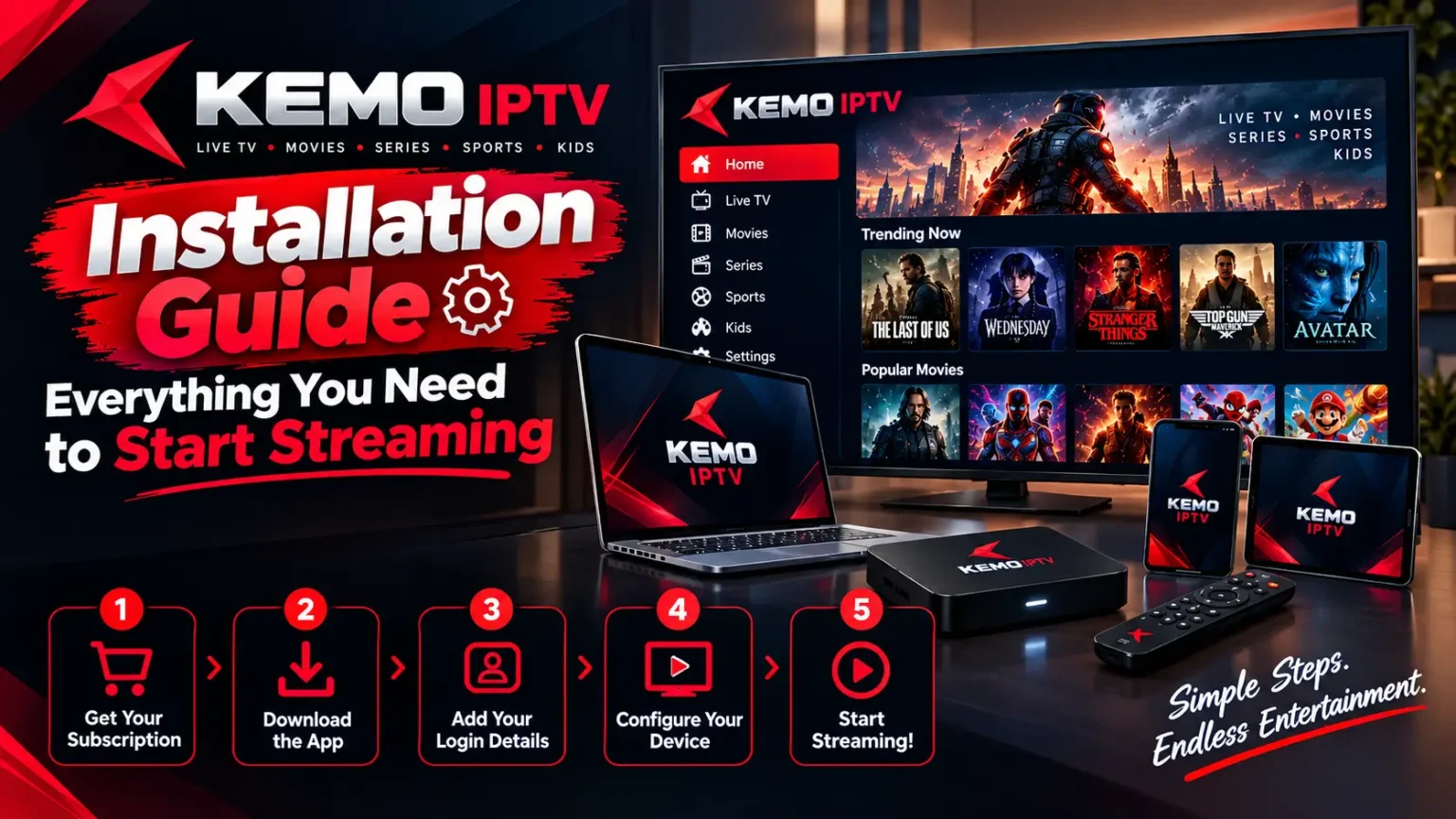
Device Setup Guide
Select your device below to view the KEMO IPTV Guide Installation instructions.
- Smart TV Setup (Samsung, LG, Sony, etc.)
Install IPTV App
Search for "Smart IPTV" or "IPTV Smarters" in your Smart TV’s app store and proceed to download and install.
On Samsung TVs, opt for Smart IPTV. For LG TVs, choose IPTV Smarters or SS IPTV.
Configure M3U URL
Open the IPTV app, navigate to settings, and enter your KEMO IPTV M3U playlist URL.
Add EPG (Optional)
To activate the TV guide, enter your EPG URL in the app’s settings.
Start Watching
Relaunch the app to enjoy KEMO IPTV channels as the playlist loads automatically.
- Amazon Firestick KEMO IPTV Guide Installation Setup
Install IPTV Smarters
Navigate to the Amazon App Store, look up "IPTV Smarters Pro," and proceed to download and install the application.
You can alternatively use Tivimate or Perfect Player available in the App Store.
Add Playlist
Start IPTV Smarters, click "Add Playlist," and pick the "M3U URL" setting.
Enter Details
Provide the essential data:
Enjoy Streaming
Click "Add Playlist" and wait for the channels to appear. Explore with your Firestick remote.
- Android Device KEMO IPTV Guide Installation Setup
Download IPTV App
Go to the Google Play Store and install any of these recommended apps:
IPTV Smarters Pro (Recommended)
TiviMate IPTV Player
Perfect Player IPTV
Configure Playlist
Launch the app and opt for "Add New User" or "Add Playlist." Provide your KEMO IPTV information.
Optimize Settings
To improve functionality on Android devices:
Enable hardware acceleration
Set buffer size to 10-15 seconds
Use external video player if available
Start Streaming
Channels will automatically load. Browse and stream content using the app’s interface.
- iOS Device KEMO IPTV Guide Installation Setup (iPhone/iPad)
Install IPTV App
Obtain one of these apps directly from the App Store.
IPTV Smarters Pro
GSE Smart IPTV
nPlayer
Add M3U Playlist
Open the app and search for the "Add Playlist" or "Remote Playlist" feature. Input your M3U URL.
Configure EPG
Add your EPG URL to activate TV guide functions. This step is optional but recommended.
Enjoy on iOS
Ensure the playlist loads fully before watching. Alternatively, AirPlay allows casting to Apple TV.
- MAG Box KEMO IPTV Guide Installation Setup
Access System Settings
Navigate to Settings → System Settings → Server with your MAG remote.
Enter Portal URL
Replace the existing portal URL with the KEMO IPTV portal URL found in your welcome email.
Be certain to include the entire portal URL with http://
Restart MAG Box
Save your settings and restart your MAG box to implement the changes.
Activate Service
Your MAG box will automatically connect to KEMO IPTV servers and show the channel list.
- Enigma2 KEMO IPTV Guide Installation Setup (Dreambox, VU+, etc.)
Access Web Interface
Open your web browser and enter the IP address of your Enigma2 device in the URL bar (e.g., http://192.168.1.100).
Upload M3U File
Go to the bouquet section and either upload your KEMO IPTV M3U playlist file or insert the M3U URL.
Convert to Bouquet
The built-in converter can be used to convert the M3U playlist into the Enigma2 bouquet format.
Reload Services
To see your KEMO IPTV channels in the channel list, reboot your Enigma2 device or refresh the services.
What Customers Say About KEMO IPTV
More than 6,174 cable-free users rely on our safe checkout and 24/7 customer assistance.
Compiled from 1,392 confirmed user evaluations
- Trustpilot
I've been using Kemo for a few months now and honestly, it's been great. The streams stay stable even during peak hours, the channel lineup is massive, and everything just works smoothly across all my devices. Hands down one of the best IPTV services I've tried.
Great experience with kemo iptv! Setup took just a few minutes, support was quick to respond whenever I had questions, and the picture quality has been excellent. I especially loved catching the World Cup matches on the sports channels without a single buffer.
kemo iptv has exceeded my expectations. It's fast, reliable, and really easy to use day to day. The VOD library has a solid mix of movies and shows, and the connection has stayed consistent since I signed up. Highly recommended!
Frequently Asked Questions
Looking for support? Find quick answers to the most common questions about KEMO IPTV below.
What is KEMO IPTV?
KEMO IPTV is a powerful streaming platform delivering over 30,000 live TV channels and more than 150,000 VOD titles from around the world. Our service uses your existing internet connection to stream content directly to your compatible devices, giving you a flexible, affordable alternative to traditional cable or satellite TV. Visit the channel list or view pricing.
What internet speed do I need for smooth streaming?
For optimal streaming with KEMO IPTV, we recommend a minimum internet speed of 30 Mbps for HD and Full HD content, and 50 Mbps for 4K Ultra HD. A stable connection is key to avoiding buffering and getting the most out of OTTOcean’s high-quality streams. Explore our setup tips.
Does KEMO IPTV work as IPTV for Roku?
Yes, KEMO IPTV is fully compatible with Roku devices. You can stream all of OTTOcean’s channels and content directly through the Roku app, giving you a smooth, buffer-free viewing experience on the big screen. For a full setup walkthrough, check out the complete guide on IPTV For Roku.
Is there a free trial available for KEMO IPTV ?
Yes, KEMO IPTV offers a 24-hour free trial for new users, so you can explore its features before committing to a subscription. Simply Contact Us or head to the Free Trial page to request yours.
How do I set up KEMO IPTV on my device?
Getting KEMO IPTV up and running is easy. Upon subscribing, you’ll receive an email with your login details and simple setup instructions for your device — whether that’s Firestick, Smart TV, Android, or iOS. Most installations take less than 5 minutes, and our support team is available around the clock if you need help. Refer to the Installation Guide.
Can I watch KEMO IPTV on multiple devices?
KEMO IPTV’s standard subscription plans allow one active connection at a time. If you’d like to stream on multiple devices simultaneously, we offer affordable add-on connections available at checkout or by reaching out to our support team. See plans or contact support.
Where can I find help or technical support?
KEMO IPTV’s support team is available 24/7 to help with any questions or technical issues you run into. Reach out via email or live chat for fast, friendly support with setup, troubleshooting, or anything else related to our IPTV service. Visit our Contact page.
How quickly does activation occur after buying?
Activation for KEMO IPTV is quick and straightforward. Once your purchase is complete, you will receive an email containing your login credentials along with clear, step-by-step setup instructions. Should you require assistance at any point, our support team is available via contact support. To get started, please visit choosing a plan.

KEMO IPTV offers over 30,000+ live TV channels and 100,000+ VOD. Trusted IPTV provider with secure checkout and real 24/7 support.
Quick Links
Legal
© 2026 KEMO IPTV. All rights reserved.